
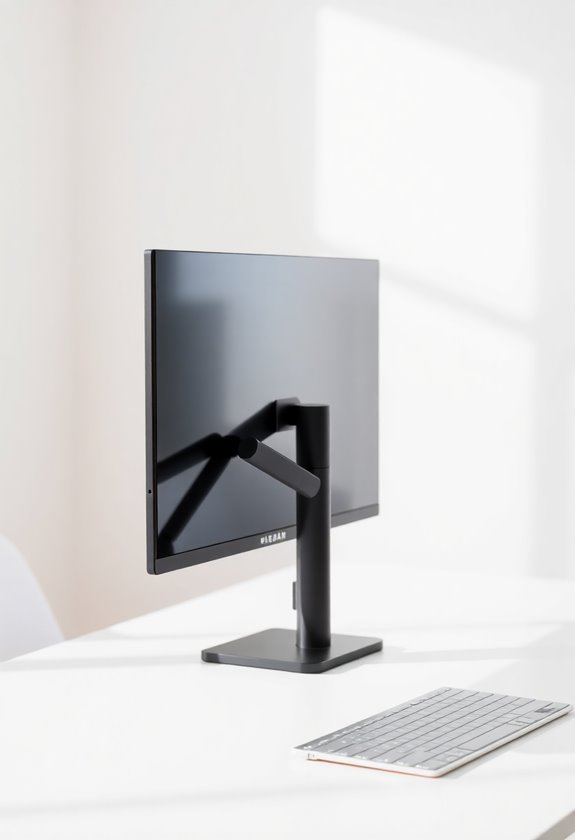
Position your monitor arm to align the screen's top edge with your eye level while sitting upright, maintaining a distance of 18-28 inches from your face. You'll want to center the monitor directly in front of you to prevent neck twisting, and tilt it slightly upward to match your natural line of sight. For dual monitors, create a gentle concave setup with your primary screen straight ahead and secondary displays angled 10-20 degrees outward. Proper mounting requires checking VESA compatibility and securing all connections firmly, with these fundamentals forming the foundation for an ergonomic workspace setup.
Highlights
- Position monitor top edge at eye level while sitting upright to maintain proper ergonomic posture and prevent neck strain.
- Keep screen distance between 18-28 inches from your face and tilt slightly upward for optimal viewing comfort.
- Ensure monitor arm allows three-dimensional adjustments and can support your screen's VESA mount compatibility.
- Center the monitor directly in front of you with the primary display straight ahead for dual-monitor setups.
- Verify desk depth of at least 60cm and use proper mounting method (clamp or grommet) based on desk thickness.
Monitor Arm Height Essentials
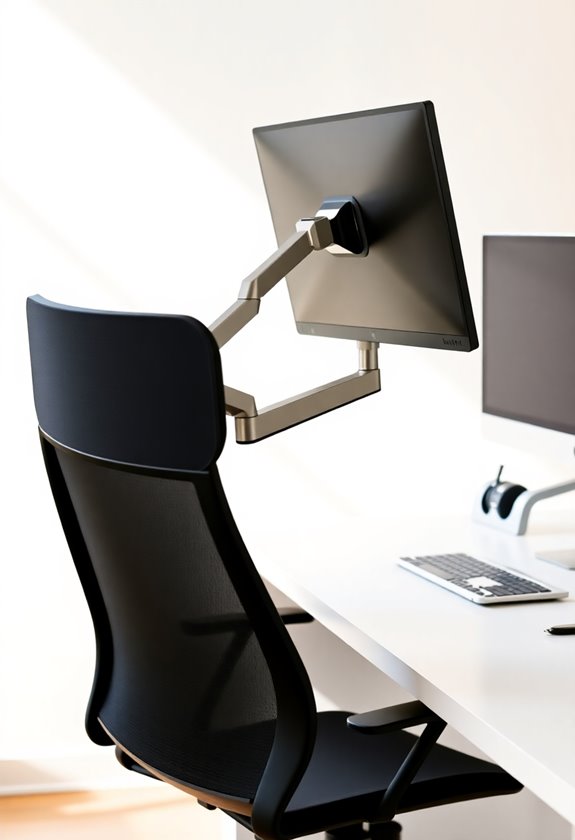
When setting up your monitor arm, proper height positioning is essential for maintaining good ergonomic posture. You’ll want to adjust your monitor so the top edge aligns with your eye level while sitting upright, which helps prevent neck strain and maintains ideal viewing comfort. Regular comfort-based adjustments may be needed to maintain optimal positioning throughout your workday. A quality monitor arm helps maximize desk space while providing ergonomic benefits. To further support good ergonomic posture, incorporating regular breaks and stretching into your work routine can be beneficial. Gentle yoga poses for flexibility can help alleviate tension and improve circulation, complementing the ergonomic benefits of a well-positioned monitor arm. Additionally, taking short walks or doing quick desk exercises can prevent stiffness and enhance overall comfort during long hours of screen time.
Position your screen between 18 to 28 inches from your face, approximately an arm's length away, allowing for a natural downward viewing angle of up to 15 degrees. When you're making adjustments, make sure the monitor's center falls directly in your central field of vision to minimize unnecessary head movements throughout the day. Your monitor arm should offer easy three-dimensional adjustments, letting you fine-tune the height until you've achieved the perfect position that keeps your neck straight and your eyes comfortably focused.
Neck and Eye Comfort
Many office workers experience neck and eye strain due to poorly positioned monitors, but the right monitor arm setup can prevent these issues. You'll want to position your screen about 18 to 28 inches from your face while ensuring the top third aligns with your eye level for ideal viewing comfort. Regular monitor arm maintenance checks help ensure optimal performance over time.
To maintain proper neck and eye positioning, follow these key guidelines:
- Tilt your screen slightly upward to match your natural line of sight
- Center the monitor directly in front of you to prevent neck twisting
- Keep viewing distance between 20-40 inches for reduced eye strain
- Position the top of your screen at or slightly below eye level
Optimal Desk Setup

Creating an ideal desk setup requires careful consideration of both ergonomics and functionality. You'll want to start with a desk that's at least 60cm deep to accommodate your monitor arm and essential equipment, while ensuring you've got ample space for chair movement and comfortable positioning. Regular weekly declutter reviews help maintain an organized and efficient workspace. Consider adding a laptop stand position to elevate your screen to eye level for better posture and neck comfort.
For peak productivity, consider these key elements:
- Select a desk that supports your specific needs, whether it's a standing desk for better posture or an L-shaped configuration for maximum workspace
- Install adjustable monitor arms to achieve perfect screen positioning
- Implement vertical storage solutions to maximize your available space
- Use cable management systems to keep your workspace clean and organized
- Position your desk to allow for proper chair clearance and movement throughout your workspace
Multiple Screen Positioning Tips
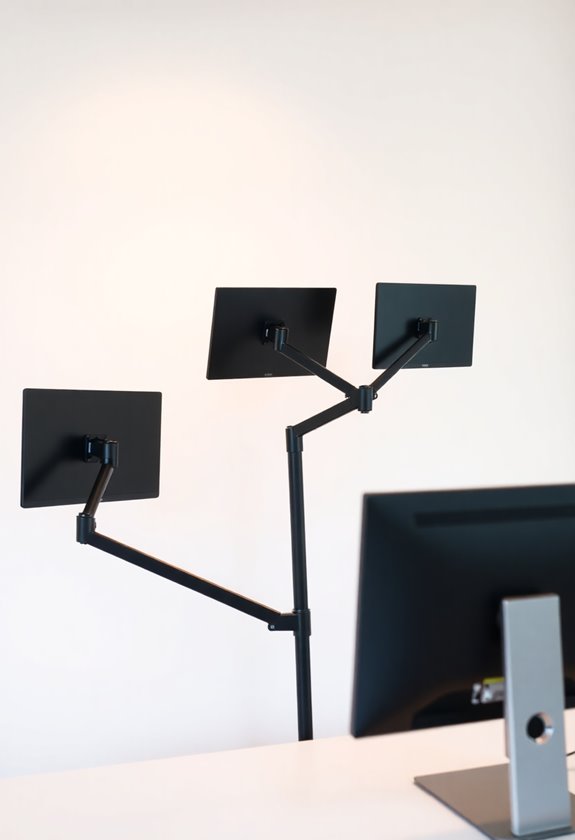
The art of positioning multiple screens can greatly impact your productivity and physical well-being. When you're setting up your monitors, you'll want to create an ergonomic arrangement that minimizes neck strain while maximizing workflow efficiency.
For optimal comfort, ensure your dual monitors are adjacent, creating a concave display setup that naturally follows your field of vision. Consider using a standing desk converter to achieve ideal screen height and viewing angles throughout your workday.
Here's how to position your screens for ideal performance:
- Place your primary monitor directly in front of you at eye level, guaranteeing the top of the screen aligns with your natural gaze
- Position secondary monitors at a 10-20 degree angle on either side to reduce head turning
- Maintain a viewing distance of 18-28 inches from each screen to protect your eyes
- Use monitor arms to make quick adjustments and guarantee proper alignment
When you're working with multiple screens, remember to center your body between the displays and keep your mouse oriented toward your main screen for comfortable access.
Ergonomic Arm Installation Guide
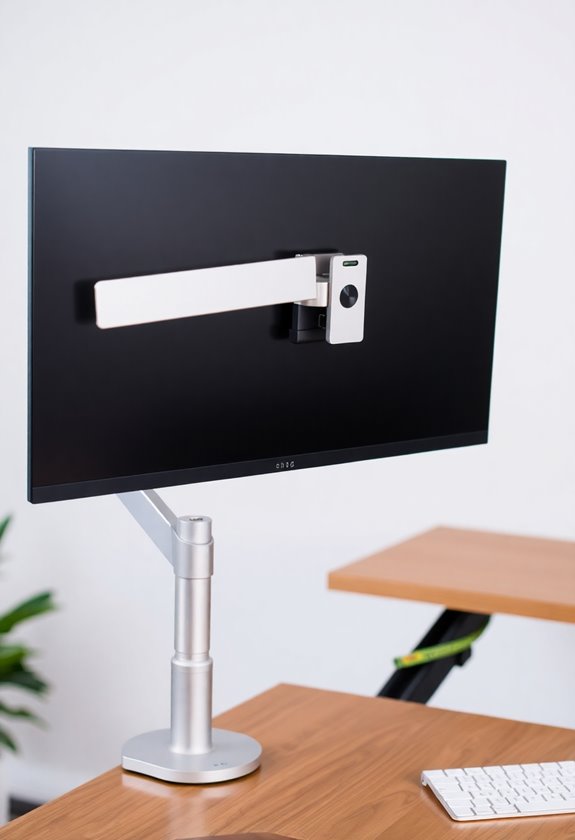
Now that you understand ideal monitor positioning, let's focus on installing your monitor arm correctly. Before you begin, you'll need to verify your monitor's VESA compatibility (either 75x75mm or 100x100mm) and check that your arm can support your screen's weight.
Start by removing your monitor's original stand and securing the VESA plate with the provided screws. You'll want to choose between a clamp or grommet mount based on your desk's thickness, making sure to follow the manufacturer's guidelines carefully. Once you've attached the arm to your desk, mount the monitor and adjust its position so the top edge aligns with your eye level, keeping the screen 18-28 inches from your face. Don't forget to tighten all connections firmly and test the arm's stability before regular use.
Frequently Asked Questions
Can Monitor Arms Damage My Desk if Not Installed Properly?
Yes, monitor arms can damage your desk if you don't install them correctly. You'll risk surface damage when you exceed weight limits or use improper mounting hardware, which can lead to dents, cracks, or scratches. To protect your desk, make sure you're using appropriate reinforcement plates, distributing weight evenly, and following the manufacturer's installation guidelines for your specific desk material and mount type.
How Often Should I Recalibrate the Tension on My Gas Spring Monitor Arm?
Did you know that 73% of monitor arm issues stem from improper tension calibration? You'll need to recalibrate your gas spring monitor arm every 3-6 months during regular use, but check it more frequently if you're using it heavily. Watch for key signs that indicate earlier adjustment is needed: your monitor drifting up or down on its own, inconsistent movement, or when you've changed your monitor's weight. Make small, incremental adjustments, and always test the arm's stability after recalibrating.
Will Direct Sunlight Affect My Monitor Arm's Material or Performance Over Time?
Direct sunlight won't greatly affect your monitor arm's aluminum components, as they're highly resistant to UV damage and heat-related warping. However, if your arm has plastic parts, they might degrade over time with prolonged sun exposure. You'll want to protect your monitor arm by using window shades or positioning it away from direct sunlight, which will help maintain its performance and extend its lifespan.
What's the Maximum Weight Fluctuation a Monitor Arm Can Handle Between Different Monitors?
You'll typically find monitor arms can handle weight fluctuations of 20-25 pounds between different monitors within their specified range. For instance, if you're using the Mount-It Heavy Duty arm rated for 4.4-44 pounds, you can safely switch between a lightweight 24-inch monitor and a heavier 35-inch display without compromising stability or performance. Always check your arm's specific weight capacity range before making monitor changes.
Should Monitor Arm Positioning Change When Using Blue Light Filtering Glasses?
You don't need to change your monitor arm positioning when using blue light filtering glasses, as these lenses don't affect your basic ergonomic needs. However, if you're wearing bifocal or progressive blue light glasses, you'll want to tilt your monitor back slightly more than usual, about 35-40 degrees, to accommodate the lens structure and maintain clear vision through the correct part of your lenses.


