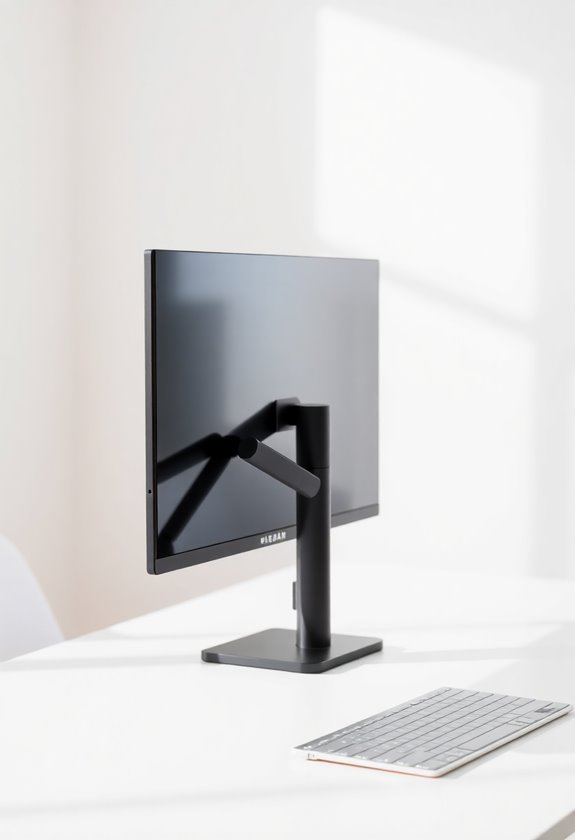
Position your monitor at arm's length (20-28 inches away) with the top third of the screen at eye level. You'll want to tilt the screen slightly backward 10-20 degrees to reduce glare while maintaining a 15-20 degree downward viewing angle from horizontal. For ideal comfort, verify your feet are flat on the floor and position the monitor perpendicular to windows to minimize reflections. If you're using multiple displays, center your primary monitor and angle secondary screens inward at equal angles, keeping all monitors at consistent heights and distances. These fundamental adjustments lay the groundwork for a more thorough ergonomic workspace setup.
Highlights
- Position monitor at arm's length (20-28 inches away) with the top third of screen aligned at eye level.
- Tilt screen backward 10-20 degrees and angle neck downward 15-20 degrees from horizontal for optimal viewing.
- Center primary monitor directly in front, with secondary displays angled inward to form a gentle arc.
- Place monitors perpendicular to windows and use bias lighting behind screens to reduce eye strain.
- Keep all monitors at identical height and distance, using same models for consistent resolution across displays.
Ergonomic Monitor Height Guidelines

When setting up your monitor, proper height placement is essential for preventing neck strain and maintaining good posture. You'll want to position your screen so that your eyes naturally align with the top third of the monitor when sitting upright.
Using monitor arms can help achieve optimal screen positioning while freeing up valuable desk space.
Here are the key height guidelines to follow:
- Position the monitor so your neck tilts down 15-20 degrees from horizontal
- Guarantee the center of the screen sits about 15-20 inches below your eye level
- Adjust your chair height so your feet rest flat on the floor while maintaining proper screen alignment
- If you're using a laptop, consider a separate monitor or laptop stand to achieve the correct height
For dual monitors, set both screens at identical heights and adjust them slightly inward to create a gentle viewing arc.
Optimal Viewing Distance
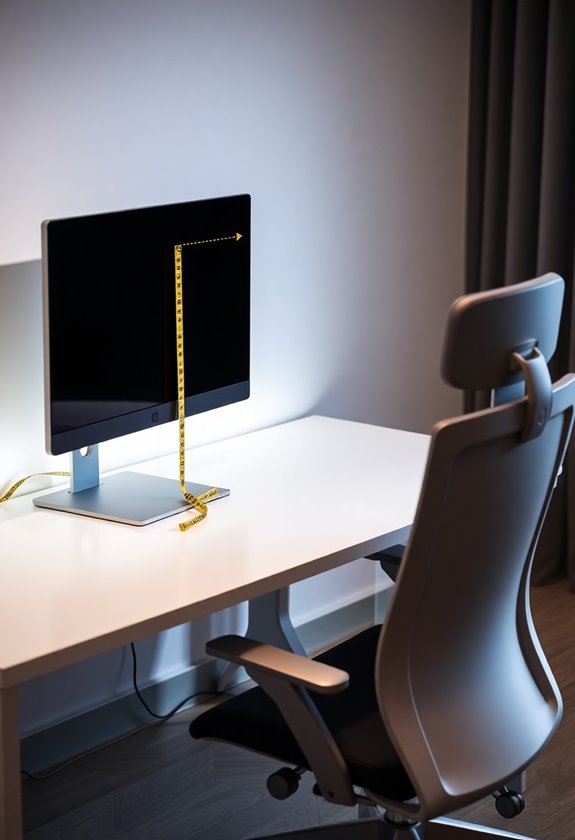
How far should you sit from your monitor? The ideal viewing distance depends on your screen size, but you'll want to position yourself at arm's length, which typically falls between 20 and 28 inches from the display.
For standard 24-inch monitors, maintain a distance of approximately 24 inches from your eyes to reduce eye strain and maintain proper posture. If you're using a larger screen, follow this simple calculation:
- 27-inch monitor: 30-32 inches away
- 32-inch monitor: 35-40 inches away
- Ultrawide monitors: Add 5-7 inches to standard distances
You can quickly check your positioning by extending your arm while seated – your fingertips should just barely touch the screen's surface, allowing you to view the entire display without moving your head excessively.
Monitor Tilt and Angle
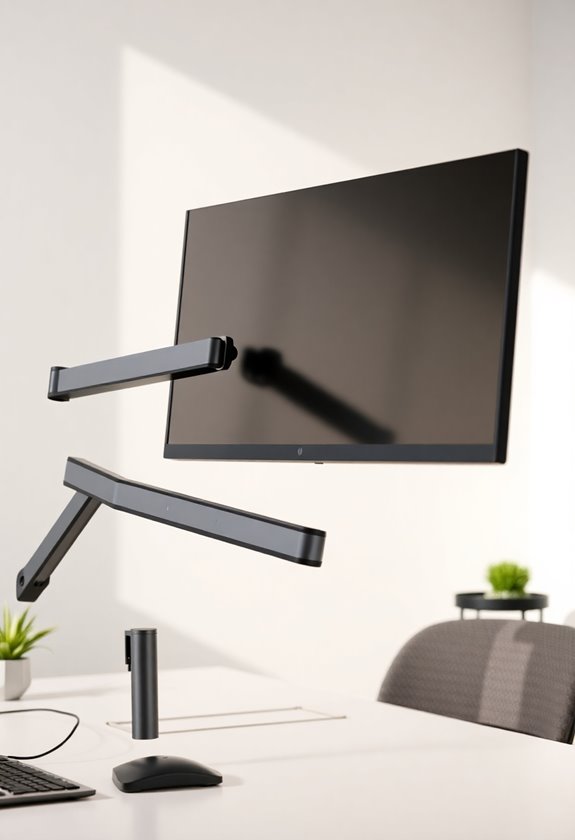
The proper tilt and angle of your monitor plays an essential role in maintaining good posture and reducing neck strain throughout the workday. You'll want to position your screen at a slight backward tilt between 10 to 20 degrees from vertical, which helps reduce glare while maintaining ideal viewing angles for your neck and eyes.
- Adjust your monitor so the top of the screen is at or slightly below eye level
- Make certain the screen face is angled perpendicular to your line of sight
- Position the monitor so you're looking slightly downward at a 15-20 degree angle
- Avoid extreme tilts that force you to crane your neck forward or backward
For dual monitors, angle each screen slightly inward to create a gentle arc, which allows for smooth visual shifts between displays while maintaining proper ergonomic positioning.
Multiple Monitor Setup Strategies

Setting up multiple monitors requires careful planning to maximize productivity and maintain ergonomic comfort. When positioning dual or triple monitors, you'll want to place your primary screen directly in front of you at arm's length, with secondary displays angled slightly inward at 15-20 degrees.
For dual monitors used equally, position them so the inner edges meet at the center of your viewing area, creating a slight V-shape that minimizes neck rotation. If you're using three monitors, place your main display in the center and arrange the side monitors at equal angles, ensuring they're all at the same height and distance from your eyes. You should adjust the bezels to align perfectly, and if possible, use identical monitor models to maintain consistent resolution and color accuracy across all screens.
Screen Glare Prevention

Screen glare can severely impact your viewing experience and cause eye strain during long work sessions. You'll want to take preventive measures to protect your eyes and maintain ideal screen visibility throughout your workday.
- Position your monitor perpendicular to windows and light sources, ensuring direct sunlight doesn't hit your screen at any point during the day
- Install adjustable window treatments like blinds or shades that you can modify based on changing light conditions throughout your workday
- Consider using an anti-glare screen filter that attaches directly to your monitor's surface, reducing reflections from both natural and artificial light
- Adjust your monitor's brightness settings to match your room's ambient lighting, which you should maintain at a consistent level using indirect light sources
Monitor Size Selection Tips
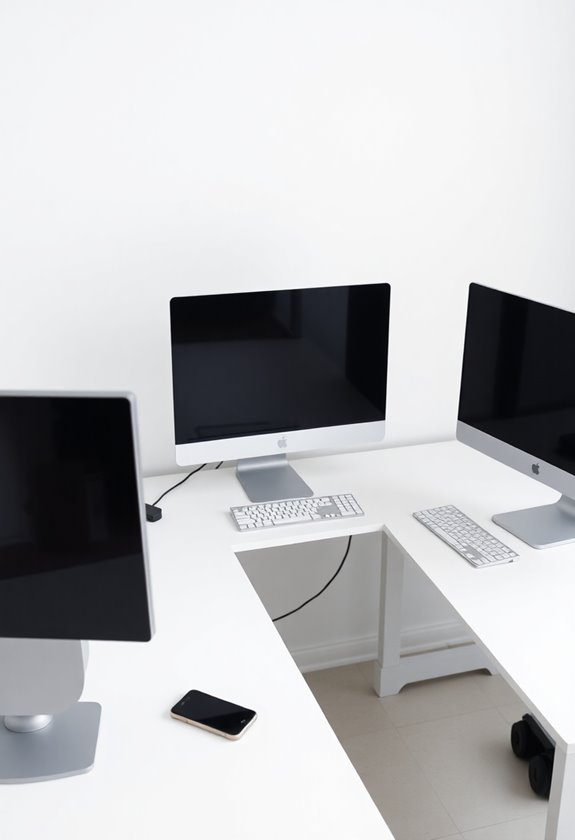
Choosing the right monitor size for your desk setup involves careful consideration of multiple factors. You'll need to evaluate your viewing distance, available desk space, and primary computer activities to make the best choice.
For standard desk depths of 24-30 inches, you'll want to follow these size guidelines:
- 21-24 inches: Ideal for limited desk space or single-screen setups
- 27-32 inches: Perfect for most users, offering balanced screen real estate
- 34+ inches: Best for creative professionals or multi-window tasks
To determine your ideal size, measure your desk's depth and multiply it by 0.8 – this calculation provides a suitable screen size that won't strain your eyes or neck. You'll also want to guarantee there's at least 6 inches of space on either side of the monitor for proper positioning.
Desk Space Planning
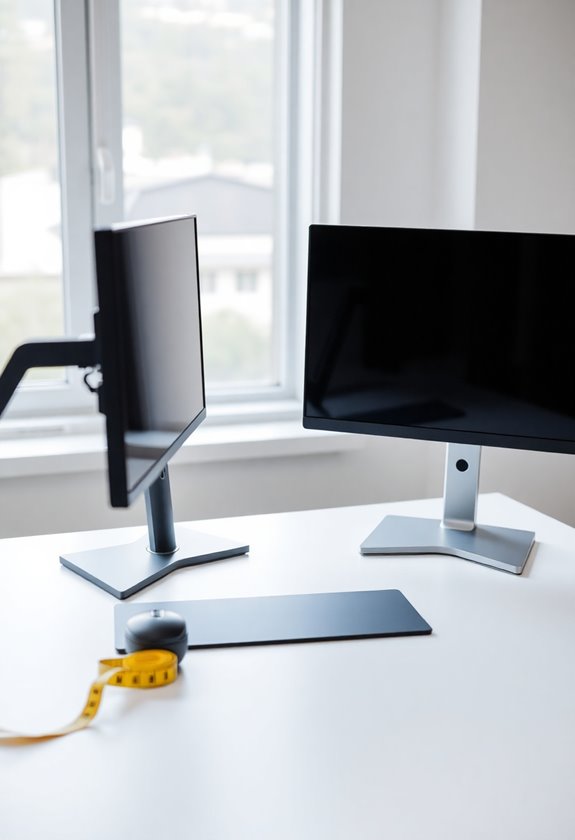
Once you've selected your ideal monitor size, proper desk space planning becomes your next priority. You'll need to carefully measure your available workspace while considering the monitor's footprint and essential peripherals that'll share the desk surface.
- Calculate a minimum of 24 inches of depth from your seated position to the monitor screen, allowing proper viewing distance and reducing eye strain
- Reserve at least 6 inches of space behind your monitor for proper ventilation and cable management
- Maintain 12-15 inches of clear space on either side of your monitor to accommodate speakers, documents, or additional screens
- Verify you've got at least 8 inches of unobstructed desk space in front of your keyboard for comfortable wrist support
Your desk layout should prioritize ergonomic positioning while maintaining enough room for your daily workflow requirements and equipment accessibility.
Monitor Mounting Options
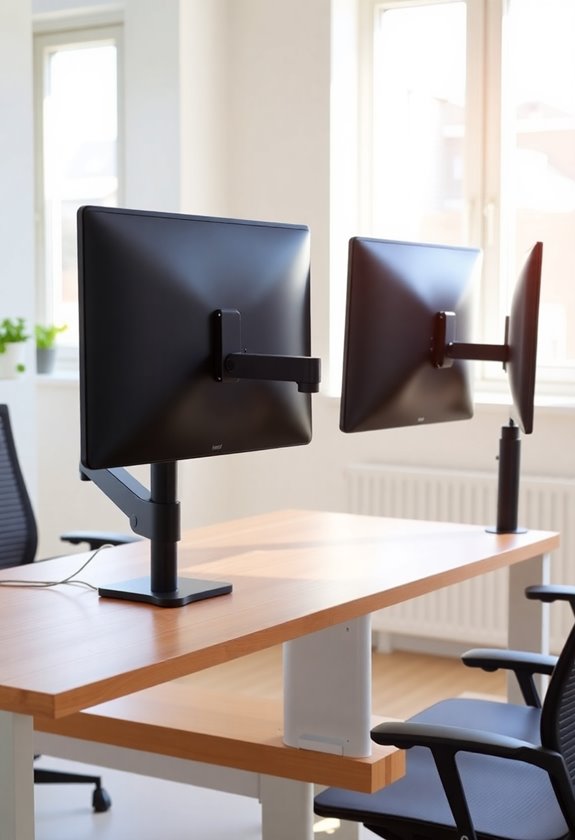
Modern monitor mounting solutions offer versatile options beyond traditional desk stands. You'll find three primary mounting categories that can transform your workspace setup and free up valuable desk real estate.
- Desk-mounted clamps attach securely to your desk's edge, providing adjustable arms that let you position your monitor at various heights and angles while maintaining stability.
- Wall-mounted brackets offer a clean, floating appearance and work well when you can't clamp to your desk, though they'll require proper installation into wall studs or solid surfaces.
- Freestanding monitor stands sit independently on your desk and often accommodate multiple screens, making them ideal if you're renting or can't modify your workspace permanently.
Each mounting option offers specific weight limits, adjustment ranges, and cable management features that you'll need to take into account for your setup.
Workspace Lighting Considerations
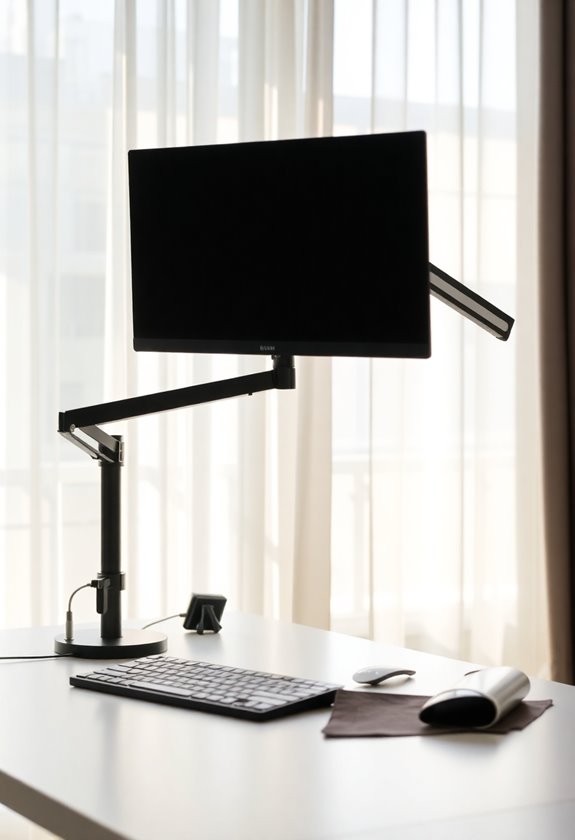
While monitor placement sets the foundation for your workspace setup, proper lighting plays an equally important role in your viewing experience. You'll need to take into account both natural and artificial light sources to create an ideal environment that reduces eye strain and enhances screen visibility throughout your workday.
- Position your monitor perpendicular to windows to minimize direct glare and reflections that can interfere with screen visibility
- Install adjustable task lighting that provides indirect illumination without causing screen reflections
- Maintain consistent ambient lighting levels throughout your workspace to reduce the contrast between your screen and surroundings
- Use bias lighting behind your monitor to decrease eye strain and improve perceived image quality, especially during extended computing sessions
Remember to adjust your lighting setup seasonally, as natural light patterns change throughout the year.
Frequently Asked Questions
Can Monitor Placement Affect My Room's Feng Shui and Overall Workspace Energy?
While feng shui principles suggest that monitor placement can influence your workspace's energy flow, you'll want to focus on practical positioning first. Your monitor should align with the room's natural pathways and avoid facing doors directly, which can create negative energy. You'll find that combining feng shui concepts with ergonomic guidelines – keeping the screen at eye level and about an arm's length away – creates both a harmonious and functional setup.
Should I Change My Monitor Setup When Streaming or Recording Video Content?
When streaming or recording content, you'll want to adjust your monitor setup for best viewing angles and professional aesthetics. Position your main display directly behind your camera at eye level, while moving additional monitors slightly off-center to maintain natural eye contact with your audience. You should also consider placing key monitoring tools, like chat feeds and stream analytics, on secondary screens where they're easily glanceable without appearing distracted.
How Does Curved vs. Flat Monitor Choice Impact Ideal Desk Placement?
Curved monitors work best when placed directly in front of you at arm's length, as their design optimizes viewing angles within a specific sweet spot. Your flat monitor offers more flexibility with placement since you'll experience consistent image quality from various angles, though you should still maintain proper ergonomic position. When using dual monitors, place your curved display as the primary central screen and flat panels at wider angles for peripheral views.
Do Gaming Monitors Require Different Placement Considerations Than Standard Office Monitors?
Studies show competitive gamers sit 20-30% closer to their monitors than typical office users. You'll want to position gaming monitors slightly lower than standard displays, keeping the top edge at or slightly below eye level for reduced neck strain during intense sessions. When using high refresh rate gaming monitors, you should also guarantee they're placed at arm's length (20-28 inches away) to optimize your reaction time and maintain visual clarity.
Can Monitor Placement Affect the Lifespan of the Display Panel?
Monitor placement can greatly affect your display's lifespan through several key environmental factors. You'll want to avoid positioning your monitor in direct sunlight or near heat sources, which can cause internal components to degrade faster. Proper ventilation is essential, so you should maintain at least 4-6 inches of clearance around your monitor's vents, ensuring adequate airflow that prevents overheating and extends the panel's longevity.