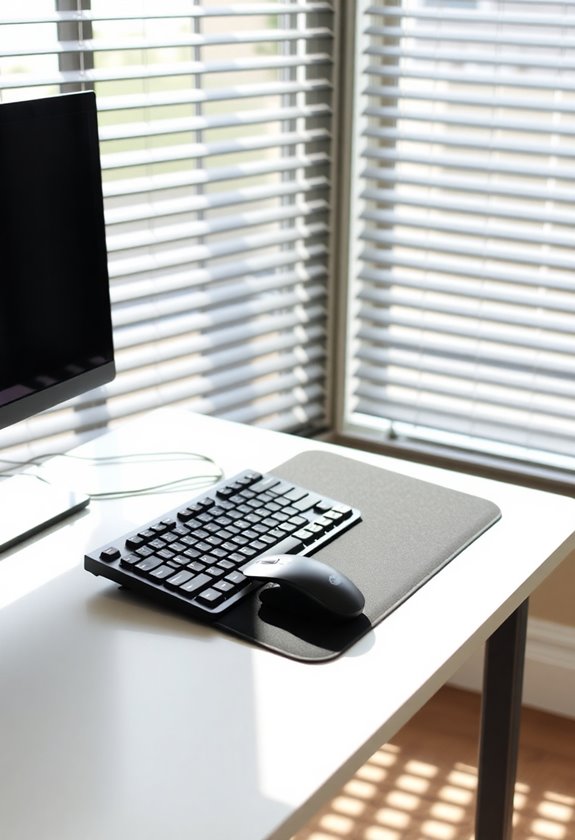
To prevent digital eye strain, you'll need to optimize your workstation setup with key adjustments. Position your monitor 20-28 inches from your eyes, with the screen's top slightly below eye level for a natural 15-20 degree downward gaze. Keep ambient lighting at half your screen's brightness, and position windows perpendicular to your display to minimize glare. Follow the 20-20-20 rule: every 20 minutes, look 20 feet away for 20 seconds to rest your eyes. Adjust your screen's brightness and contrast to match your environment, and maintain proper posture with feet flat on the floor. These foundational steps will lead you toward a thorough eye strain prevention strategy.
Highlights
- Position your monitor 20-28 inches from your eyes with the top slightly below eye level for optimal viewing angle.
- Set up your workstation perpendicular to windows to minimize glare and adjust ambient lighting to half the screen's brightness.
- Follow the 20-20-20 rule: every 20 minutes, look at something 20 feet away for 20 seconds to reduce strain.
- Adjust your chair height to maintain proper posture and ensure your feet are flat on the ground.
- Customize screen settings by increasing text size, adjusting contrast, and enabling blue light filters for comfortable viewing.
Understanding Digital Eye Strain
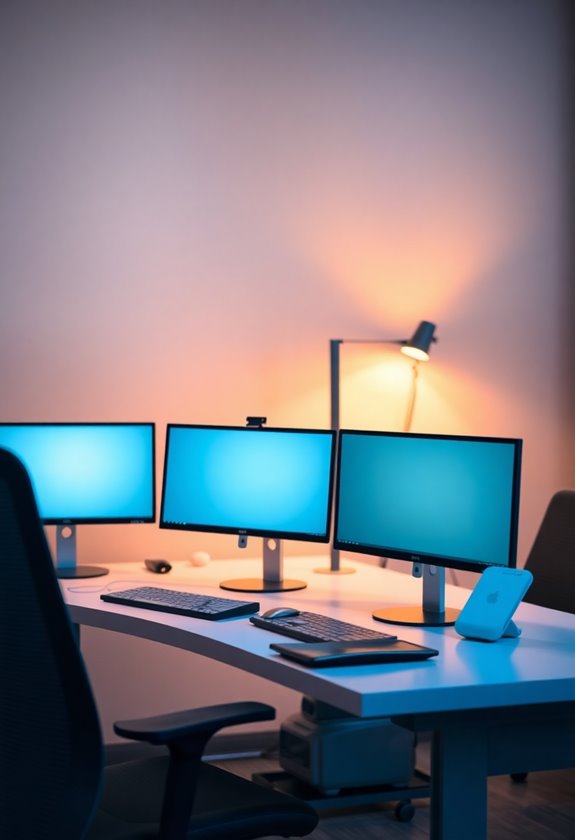
Nearly everyone who spends long hours at a computer has experienced digital eye strain at some point. You'll likely notice the telltale symptoms: blurred vision, dry or irritated eyes, headaches, and neck pain that typically worsen as your workday progresses.
Digital eye strain occurs when you're focusing on screens for extended periods, causing your eyes to work harder than they would during normal activities. Your eyes are constantly adjusting to varying:
- Screen brightness and glare
- Changing text sizes and layouts
- Moving images and scrolling content
- Different viewing distances and angles
When you're looking at screens, you'll blink less frequently than usual, which can lead to dry eyes and discomfort. Understanding these basic mechanisms of digital eye strain is your first step toward implementing effective solutions for prevention and relief. Blue light glasses can help filter harmful screen emissions and reduce eye fatigue throughout your workday.
Proper Screen Distance and Height
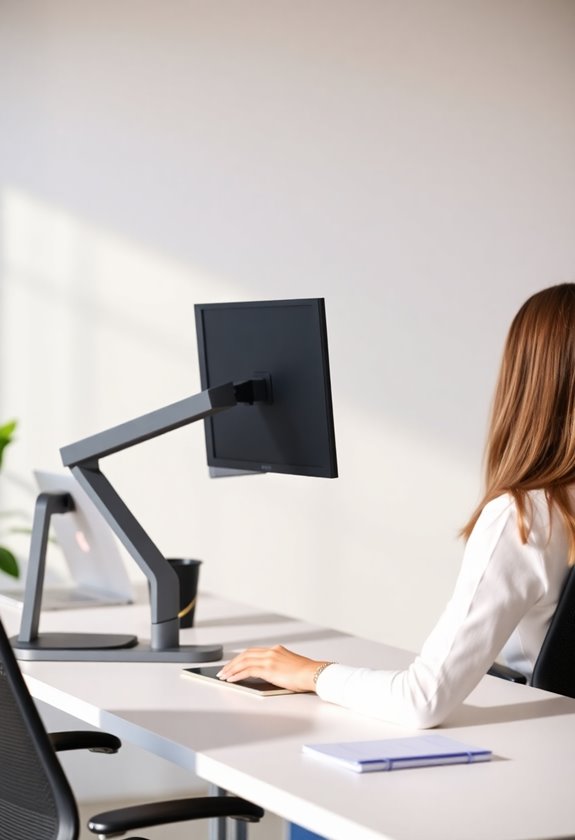
The two most critical factors in preventing eye strain are positioning your screen at the right distance and height. You'll want to place your monitor at arm's length, approximately 20-28 inches from your eyes, while ensuring the top of your screen sits slightly below eye level. When you're looking straight ahead, your eyes should naturally fall on the upper third of your screen.
- Position your screen so you're looking slightly downward at a 15-20 degree angle, reducing neck strain and eye fatigue
- Maintain an arm's length distance that lets you read text without leaning forward or squinting
- Adjust your chair height so your feet rest flat on the floor, supporting proper posture and screen viewing
- Keep your screen perpendicular to windows to minimize glare and reflections that strain your eyes
Lighting Your Workspace Effectively
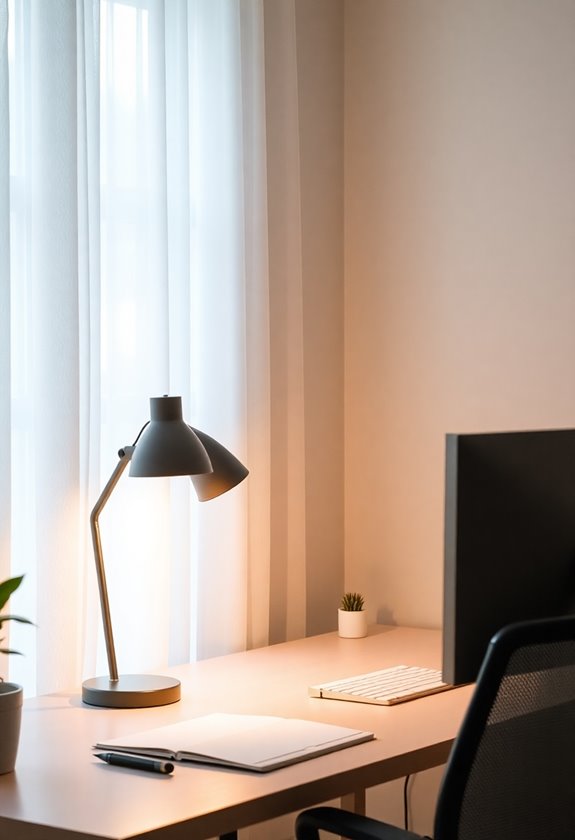
Proper lighting in your workspace plays an essential role in reducing eye strain during computer use. You'll want to verify your ambient lighting is about half as bright as your screen, which helps prevent your eyes from constantly readjusting between light levels. Position your workstation so that windows are perpendicular to your screen, reducing direct glare that can cause squinting and eye fatigue. Installing anti-glare screen protectors can significantly reduce reflections and make viewing your display more comfortable in any lighting condition.
- Use adjustable desk lamps with LED bulbs rated at 3000-4000K for ideal color temperature
- Install indirect lighting fixtures that bounce light off walls and ceilings
- Apply window coverings or blinds to control natural light throughout the day
- Eliminate bright light sources behind your monitor and in your direct line of sight
- Consider using anti-glare filters on your screen if overhead lighting can't be modified
Screen Brightness and Contrast
Optimizing screen brightness and contrast settings can dramatically reduce eye strain during long computer sessions. You'll want to match your screen's brightness to your surrounding environment while ensuring text remains crisp and readable throughout your workday.
- Adjust your screen's brightness until it doesn't feel like you're staring at a lightbulb or struggling to read dark text
- Set your contrast high enough that black text appears solid against white backgrounds, but not so high that it creates a harsh glare
- Enable your device's auto-brightness feature if available, which will automatically adjust to changing light conditions throughout the day
- Lower your screen's blue light output during evening hours, when your eyes become more sensitive to bright, cool-toned light
Remember to fine-tune these settings whenever your lighting conditions change considerably.
Taking Regular Vision Breaks

Regular vision breaks are essential for preventing digital eye strain and maintaining long-term eye health. You'll want to follow the 20-20-20 rule: every 20 minutes, take a 20-second break to look at something 20 feet away from your screen, which helps relax your eye muscles and reduce fatigue.
During longer work sessions, you should incorporate more substantial breaks by standing up and walking around for 5-10 minutes every two hours, giving your eyes a complete rest from digital devices. When you're taking these breaks, try focusing on distant objects through a window, which encourages your eyes to adjust between near and far distances naturally. Remember to blink frequently during screen time, as digital device use often reduces your natural blink rate greatly.
Ergonomic Monitor Setup

A well-positioned monitor can greatly reduce eye strain and neck fatigue during long work hours. You'll need to position your screen at arm's length, about 20-28 inches from your eyes, while guaranteeing the top of the monitor sits slightly below eye level. When you're looking straight ahead, your eyes should naturally fall on the upper third of your screen.
- Set your monitor's brightness to match your surrounding workspace lighting, which helps prevent your eyes from constantly readjusting
- Tilt your screen back 10-20 degrees to reduce glare and maintain a comfortable viewing angle
- Position your monitor perpendicular to windows to minimize direct sunlight reflection
- Guarantee your screen resolution is high enough that text appears crisp and clear, reducing the strain required to read content
Consider placing anti-fatigue mats beneath your workstation to maintain comfort while alternating between sitting and standing positions throughout the day.
Managing Glare and Reflections
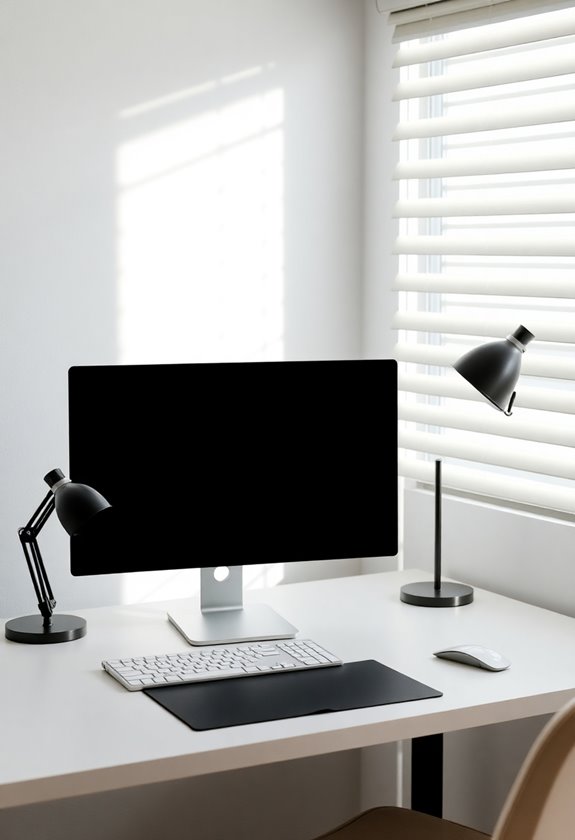
Managing unwanted glare and reflections is essential for preventing digital eye strain in your workspace. You'll need to identify and control multiple sources of glare, including overhead lighting, windows, and reflective surfaces that can create uncomfortable brightness on your screen.
To minimize glare effectively, position your monitor perpendicular to windows and adjust window blinds or shades during peak sunlight hours. You can also install an anti-glare screen filter on your monitor, which will reduce reflections while maintaining image clarity. If you're dealing with overhead lighting issues, consider repositioning your desk or requesting adjustments to the lighting fixtures above your workspace, and make sure your monitor's surface is clean and dust-free to prevent additional light scatter.
Choosing the Right Display
Selecting the right display for your workstation plays an essential role in preventing eye strain and maintaining productivity. When choosing a monitor, you'll want to take into account factors like screen size, resolution, and refresh rate to guarantee comfortable viewing throughout your workday. Modern LCD displays with anti-glare technology and adjustable brightness settings can greatly reduce the strain on your eyes during extended computer use.
- Choose a display that's at least 24 inches with 1440p resolution to prevent squinting and guarantee text clarity
- Look for monitors with built-in blue light filters to protect your eyes during late-night work sessions
- Select displays with a refresh rate of 75Hz or higher to reduce eye fatigue from screen flickering
- Invest in monitors with IPS panels for consistent color reproduction and wider viewing angles
Eye Exercises at Work

While optimizing your display settings helps protect your vision, regular eye exercises can further combat digital eye strain during work hours. You'll want to practice these simple exercises every 20-30 minutes throughout your workday:
- Focus shifting: Look at a distant object for 10-15 seconds, then focus on something nearby for another 10-15 seconds, repeating this cycle three times.
- Eye rolling: Slowly rotate your eyes clockwise, then counterclockwise, completing five circles in each direction while keeping your head still.
- Palming: Cup your warm hands over your closed eyes for 30 seconds, allowing your eye muscles to completely relax in the darkness.
- Blinking exercises: Deliberately blink slowly ten times to help redistribute your tear film and moisten your eyes.
Frequently Asked Questions
Can Wearing Blue Light Glasses Help Prevent Digital Eye Strain?
Like a shield protecting your eyes from harsh sunlight, blue light glasses can help reduce digital eye strain. While research shows mixed results, these glasses may filter out some harmful blue light emitted from screens. You'll likely notice the most benefit when wearing them during extended screen time, especially in the evening hours. However, they're just one tool – you'll still need regular screen breaks and proper monitor positioning.
Should I Get Prescription Computer Glasses if I Already Wear Contacts?
If you wear contacts, getting prescription computer glasses can be beneficial for several reasons. Your contacts might dry out during long screen sessions, and computer glasses can provide relief while offering the right focal length for screen viewing. Additionally, these specialized glasses can include anti-reflective coatings and blue light filtering, which work together with your contact lenses to reduce eye strain and improve overall visual comfort.
Does Screen Size Affect Eye Strain When Working on Multiple Monitors?
Screen size can affect eye strain when you're working with multiple monitors, especially if they're different sizes or distances from your eyes. You'll experience more strain when constantly shifting focus between screens that aren't properly aligned or matched in resolution and brightness. To minimize discomfort, position your monitors at the same height and distance, and guarantee they have similar brightness settings and resolution configurations.
Can Certain Fonts or Text Colors Help Reduce Eye Fatigue?
Ever wondered why some text feels easier on your eyes than others? You'll find relief by using sans-serif fonts like Arial or Verdana, which offer better screen readability than decorative fonts. Dark text on a light background typically causes less strain, but you'll want to avoid bright white backgrounds – instead, opt for soft, neutral colors. For maximum comfort, choose font sizes between 12 and 14 points.
How Do Different Types of Contact Lenses Impact Digital Eye Strain?
Different contact lens types can considerably affect your digital eye strain experience. Soft contacts may dry out faster during screen time, while gas-permeable lenses typically allow more oxygen to reach your eyes but might feel less comfortable initially. You'll find that multifocal contacts can help reduce strain when switching between screen distances, and daily disposables often provide better comfort for extended digital work than extended-wear lenses.