
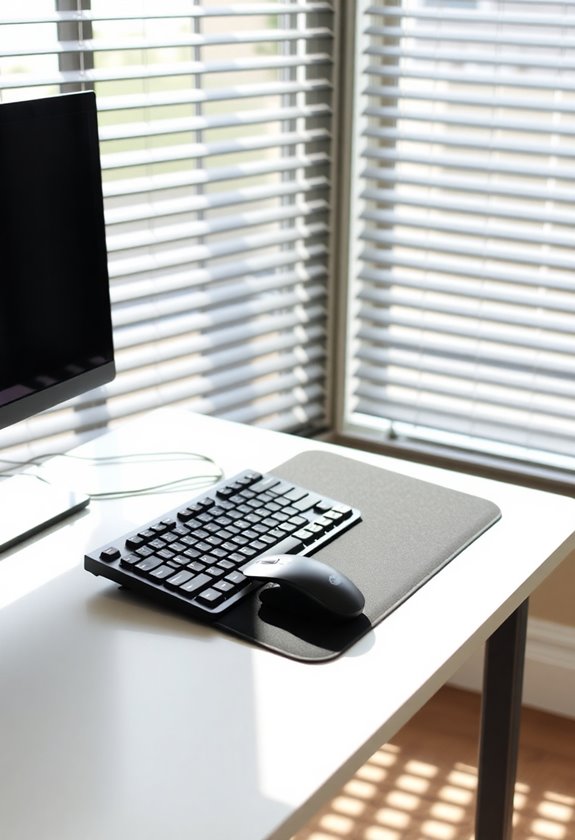
You can prevent wrist pain at your desk by following five essential ergonomic steps. Start by adjusting your desk height so your feet rest flat and legs fit comfortably underneath. Position your keyboard at or slightly below elbow height, keeping forearms parallel to the floor. Use a soft, rounded wrist rest that matches your keyboard’s dimensions, but remember to keep hands elevated while typing. Maintain proper posture with your back straight and ears, shoulders, and hips aligned. Take regular movement breaks every 20 minutes for stretches and walks. These foundational practices will set you up for a pain-free workday.
Highlights
- Use a soft wrist rest for palm support while typing, avoiding direct wrist pressure on hard surfaces.
- Position keyboard at or slightly below elbow height with forearms parallel to the desk surface.
- Keep wrists straight and neutral while typing, avoiding excessive flexion or extension movements.
- Take regular breaks every 20 minutes to perform wrist stretches and circulation-promoting exercises.
- Maintain proper arm positioning with elbows at 90 degrees and close to your body while typing.
Proper Desk Setup Essentials
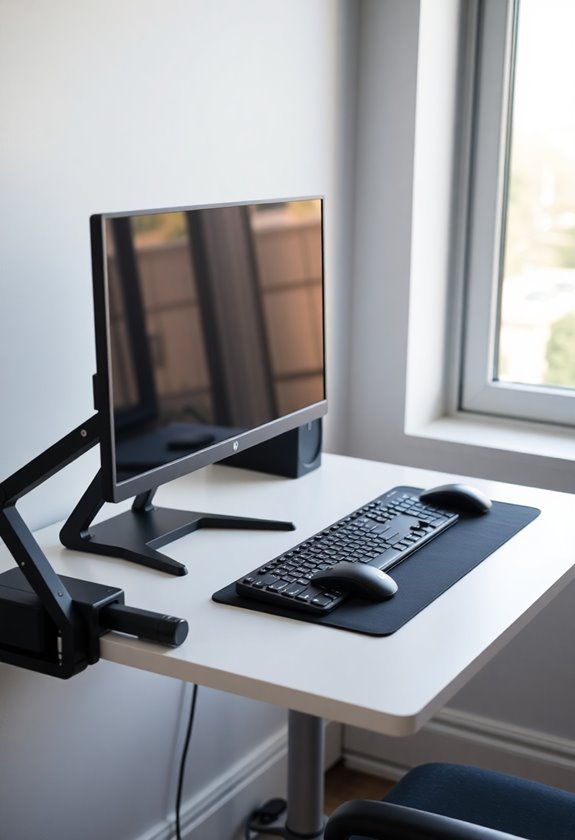
Whether you’re working from home or in an office, setting up your desk correctly is essential for preventing wrist pain and maintaining comfort throughout the workday. Start by ensuring your desk height allows your legs to fit comfortably underneath while keeping your feet flat on the floor.
Your desk setup should achieve these key positions:
- Your elbows should form a 90-degree angle with forearms parallel to the desk surface
- Your upper arms should align naturally with your torso, not reaching forward
- There should be enough space to cross your legs under the desk comfortably
If you’re using a standard desk that isn’t adjustable, you’ll need to modify your chair height and possibly add a footrest to achieve the proper positioning. An ergonomic footrest support can help maintain proper leg positioning and reduce pressure on your lower back. Consider investing in an adjustable desk for precise height control and ideal comfort. Regular movement between sitting and standing positions can help reduce musculoskeletal discomfort throughout the day.
Position Your Keyboard Right
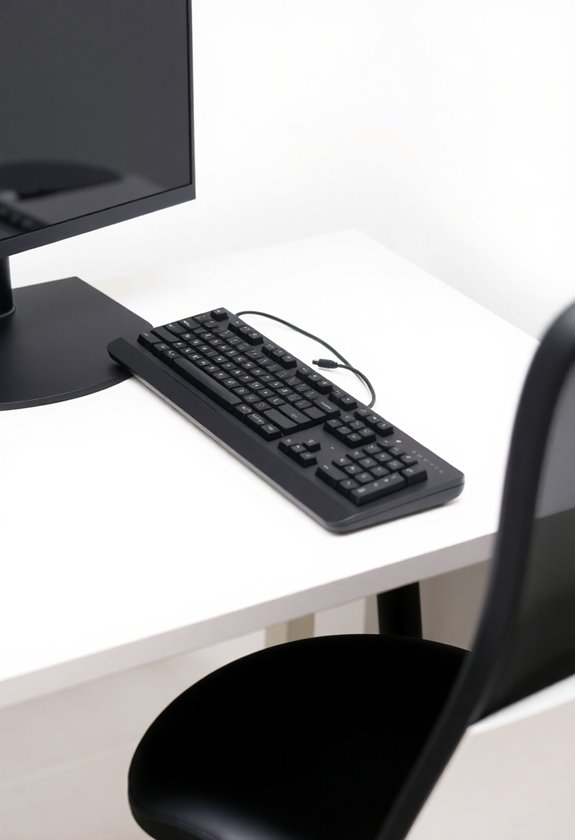
A properly positioned keyboard is your first line of defense against wrist pain and repetitive strain injuries. To set up your keyboard correctly, start by positioning it at or slightly below your seated elbow height, ensuring your forearms remain parallel to the floor while typing. Regular breaks are essential to prevent muscle fatigue during extended typing sessions.
Keep your keyboard flat or slightly tilted away from you with a negative slope, which helps maintain neutral wrist positioning and reduces strain on your forearms. You’ll want to place it directly in front of you within easy reach, making sure there aren’t any obstacles that could force awkward arm positions. When typing, your wrists should stay neutral – not bent up, down, or sideways – while your elbows maintain a 90-degree angle. If needed, use an adjustable keyboard tray or ergonomic accessories to achieve ideal positioning. Consider pairing your keyboard setup with an ergonomic mouse to provide comprehensive wrist support during computer work. If you find yourself experiencing discomfort or pain while typing, it may be worth investing in an ergonomic keyboard tray installation to customize the height and angle of your keyboard for optimal comfort. This can make a significant difference in reducing strain on your wrists and forearms, allowing you to work more comfortably and efficiently. Additionally, taking regular breaks to stretch and move your hands and arms can also help prevent discomfort and fatigue during long periods of typing. An ergonomic keyboard tray installation can also help to alleviate pressure on your wrists and reduce the risk of developing repetitive strain injuries. By customizing the height and angle of your keyboard, you can create a more natural and comfortable typing position. This can ultimately lead to increased productivity and a healthier work environment. Additionally, incorporating a wrist rest can further support your hands and reduce the strain of continuous typing.
Support Those Wrists

Once you’ve positioned your keyboard correctly, proper wrist support becomes your next priority for preventing discomfort and injury. You’ll want to select a wrist rest that’s soft, rounded, and at least 1.5 inches deep to provide adequate support for your palms. Workstation adjustments can significantly reduce your need for wrist support devices. A high-quality memory foam rest will provide optimal comfort during long typing sessions.
Make sure your wrist rest matches your keyboard’s width, height, and slope, which will help maintain a neutral wrist position while you work. Remember, you shouldn’t actually rest your wrists on the support – it’s designed for your palm or heel of your hand. When typing, keep your hands elevated above the rest and your elbows close to your body. Don’t lean heavily on the support, as this can create unnecessary pressure. Instead, let your chair’s armrests or desk surface provide additional support for your arms.
Master Your Daily Posture
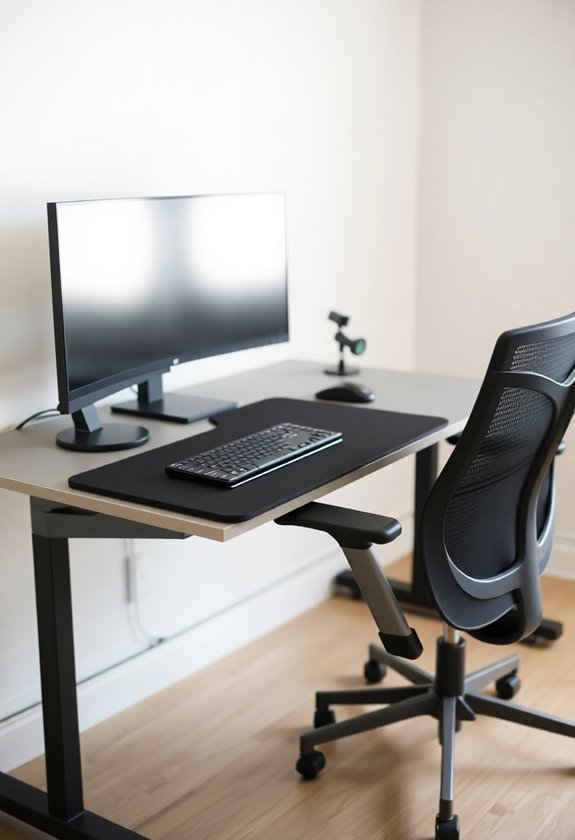
Throughout your workday, maintaining proper posture at your desk plays an essential role in preventing wrist pain and other musculoskeletal issues. Keep your back straight against your chair’s lumbar support while aligning your ears, shoulders, and hips in a vertical line. Using a rolled towel support can help maintain the natural curve of your spine when sitting. Consider using a standing desk converter to alternate between sitting and standing positions throughout your day.
You’ll want to position your body correctly with these key adjustments:
- Confirm your forearms remain parallel to the floor with elbows at 90 degrees
- Keep your feet flat on the floor or a footrest, with knees level with or slightly below your hips
- Position your buttocks against the chair’s back to maintain a neutral pelvis
- Relax your shoulders while keeping them pulled back naturally
- Check that your monitor’s top edge sits at or slightly below eye level
Remember to perform gentle posture checks throughout your day to maintain these alignments.
Routine Movement and Stretches
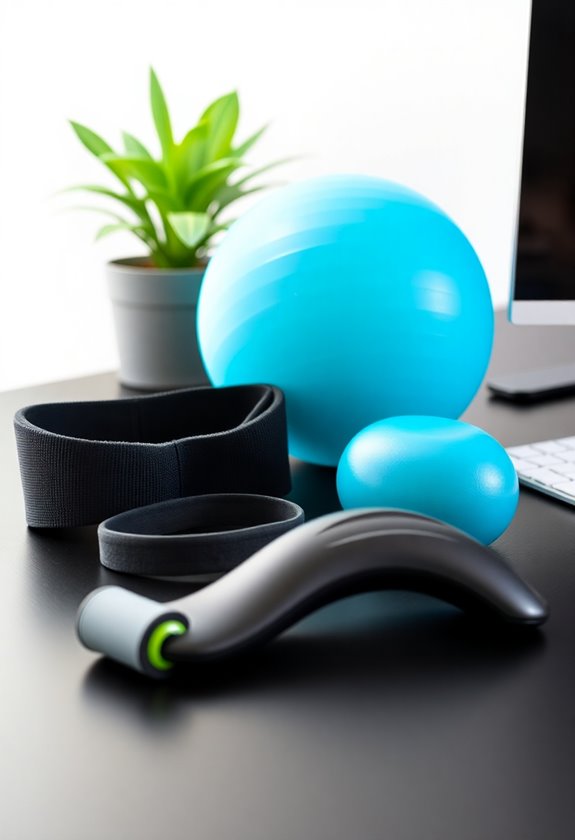
Regular movement breaks and stretching routines can ward off wrist pain and prevent repetitive strain injuries while working at your desk. You’ll want to take breaks every 20 minutes to perform simple stretches, including wrist circles in both directions and gentle forearm stretches by flexing your wrists up and down. A proactive mindset towards ergonomic practices can significantly reduce long-term injury risks.
Don’t forget to incorporate shoulder rotations and seated spinal twists into your routine, as these movements help maintain overall upper body flexibility. You can maximize these breaks by standing up and walking around your workspace while performing shoulder rolls and chin tucks. If you’re using an adjustable desk, alternate between sitting and standing positions throughout the day to promote better circulation and reduce muscle tension in your wrists and forearms.
Frequently Asked Questions
How Long Should I Wait Before Replacing My Ergonomic Keyboard?
You’ll typically need to replace your ergonomic keyboard every 10-15 years, depending on your usage patterns and maintenance routine. If you’re noticing consistent key failures, loss of tactile feedback, or experiencing physical discomfort despite proper positioning, it’s time for a replacement. Regular cleaning and proper care can extend your keyboard’s lifespan, but when repair costs exceed replacement value, you should consider upgrading.
Can Wearing Wrist Braces While Typing Help Prevent Carpal Tunnel Syndrome?
Yes, wearing wrist braces while typing can effectively prevent carpal tunnel syndrome by maintaining a neutral wrist position. You’ll reduce pressure on your median nerve when the brace keeps your wrist straight during keyboard use. For the best results, combine wrist braces with proper ergonomic practices, including elevated hands and regular breaks, which will help minimize strain and inflammation while protecting your wrists during extended typing sessions.
Should I Adjust My Desk Setup Differently if I Use Multiple Monitors?
Yes, you’ll need to adjust your setup for multiple monitors. For equal monitor use, position them side by side at a slight angle to form a semi-circle, keeping the edges touching to minimize neck strain. If you primarily use one monitor, place it directly in front while angling secondary monitors about 30 degrees away. Maintain all screens at eye level and keep an arm’s length distance from your viewing position. To achieve optimal monitor arm positioning, invest in adjustable monitor arms that allow for flexible positioning. This will help accommodate different monitor heights and angles, as well as make it easier to adjust for changes in your work environment. Additionally, consider investing in a monitor stand or riser to elevate your monitors to eye level if desk space is limited.
Are Standing Desks Better for Preventing Wrist Pain Than Traditional Desks?
Standing desks aren’t automatically better for preventing wrist pain – it’s all about how you set them up. While you might think switching to a standing desk will solve your wrist issues, proper ergonomic positioning matters more than the type of desk you’re using. You’ll need to maintain correct arm angles, keyboard placement, and monitor height whether you’re sitting or standing, and make regular adjustments throughout your workday.
Do Ergonomic Mouse Pads Actually Make a Significant Difference in Wrist Health?
Yes, ergonomic mouse pads make a measurable difference in your wrist health, with studies showing up to 22% reduction in forearm muscle strain. You’ll benefit most from slanted designs that support a neutral wrist position, particularly those set at a 10-degree angle. When you’re using an ergonomic mouse pad that’s properly positioned, you’ll reduce your risk of developing carpal tunnel syndrome and other repetitive stress injuries.neutral wrist positioning and reduces strain on your forearms. You’ll want to place it directly in front of you within easy reach, making sure there aren’t any obstacles that could force awkward arm positions. When typing, your wrists should stay neutral – not bent up, down, or sideways – while your elbows maintain a 90-degree angle. If needed, use an adjustable keyboard tray or ergonomic accessories to achieve ideal positioning. Consider pairing your keyboard setup with an ergonomic mouse to provide comprehensive wrist support during computer work.2/essential_desk_setup_items.jpg” alt=”essential desk setup items””>
Whether you’re working from home or in an office, setting up your desk correctly is essential for preventing wrist pain and maintaining comfort throughout the workday. Start by ensuring your desk height allows your legs to fit comfortably underneath while keeping your feet flat on the floor.
Your desk setup should achieve these key positions:
- Your elbows should form a 90-degree angle with forearms parallel to the desk surface
- Your upper arms should align naturally with your torso, not reaching forward
- There should be enough space to cross your legs under the desk comfortably
If you’re using a standard desk that isn’t adjustable, you’ll need to modify your chair height and possibly add a footrest to achieve the proper positioning. An ergonomic footrest support can help maintain proper leg positioning and reduce pressure on your lower back. Consider investing in an adjustable desk for precise height control and ideal comfort. Regular movement between sitting and standing positions can help reduce musculoskeletal discomfort throughout the day.
Position Your Keyboard Right
A properly positioned keyboard is your first line of defense against wrist pain and repetitive strain injuries. To set up your keyboard correctly, start by positioning it at or slightly below your seated elbow height, ensuring your forearms remain parallel to the floor while typing. Regular breaks are essential to prevent muscle fatigue during extended typing sessions.
Keep your keyboard flat or slightly tilted away from you with a negative slope, which helps maintain neutral wrist positioning and reduces strain on your forearms. You’ll want to place it directly in front of you within easy reach, making sure there aren’t any obstacles that could force awkward arm positions. When typing, your wrists should stay neutral – not bent up, down, or sideways – while your elbows maintain a 90-degree angle. If needed, use an adjustable keyboard tray or ergonomic accessories to achieve ideal positioning. Consider pairing your keyboard setup with an ergonomic mouse to provide comprehensive wrist support during computer work. If you find yourself experiencing discomfort or pain while typing, it may be worth investing in an ergonomic keyboard tray installation to customize the height and angle of your keyboard for optimal comfort. This can make a significant difference in reducing strain on your wrists and forearms, allowing you to work more comfortably and efficiently. Additionally, taking regular breaks to stretch and move your hands and arms can also help prevent discomfort and fatigue during long periods of typing.
Support Those Wrists
Once you’ve positioned your keyboard correctly, proper wrist support becomes your next priority for preventing discomfort and injury. You’ll want to select a wrist rest that’s soft, rounded, and at least 1.5 inches deep to provide adequate support for your palms. Workstation adjustments can significantly reduce your need for wrist support devices. A high-quality memory foam rest will provide optimal comfort during long typing sessions.
Make sure your wrist rest matches your keyboard’s width, height, and slope, which will help maintain a neutral wrist position while you work. Remember, you shouldn’t actually rest your wrists on the support – it’s designed for your palm or heel of your hand. When typing, keep your hands elevated above the rest and your elbows close to your body. Don’t lean heavily on the support, as this can create unnecessary pressure. Instead, let your chair’s armrests or desk surface provide additional support for your arms.
Master Your Daily Posture
Throughout your workday, maintaining proper posture at your desk plays an essential role in preventing wrist pain and other musculoskeletal issues. Keep your back straight against your chair’s lumbar support while aligning your ears, shoulders, and hips in a vertical line. Using a rolled towel support can help maintain the natural curve of your spine when sitting. Consider using a standing desk converter to alternate between sitting and standing positions throughout your day.
You’ll want to position your body correctly with these key adjustments:
- Confirm your forearms remain parallel to the floor with elbows at 90 degrees
- Keep your feet flat on the floor or a footrest, with knees level with or slightly below your hips
- Position your buttocks against the chair’s back to maintain a neutral pelvis
- Relax your shoulders while keeping them pulled back naturally
- Check that your monitor’s top edge sits at or slightly below eye level
Remember to perform gentle posture checks throughout your day to maintain these alignments.
Routine Movement and Stretches
Regular movement breaks and stretching routines can ward off wrist pain and prevent repetitive strain injuries while working at your desk. You’ll want to take breaks every 20 minutes to perform simple stretches, including wrist circles in both directions and gentle forearm stretches by flexing your wrists up and down. A proactive mindset towards ergonomic practices can significantly reduce long-term injury risks.
Don’t forget to incorporate shoulder rotations and seated spinal twists into your routine, as these movements help maintain overall upper body flexibility. You can maximize these breaks by standing up and walking around your workspace while performing shoulder rolls and chin tucks. If you’re using an adjustable desk, alternate between sitting and standing positions throughout the day to promote better circulation and reduce muscle tension in your wrists and forearms.
Frequently Asked Questions
How Long Should I Wait Before Replacing My Ergonomic Keyboard?
You’ll typically need to replace your ergonomic keyboard every 10-15 years, depending on your usage patterns and maintenance routine. If you’re noticing consistent key failures, loss of tactile feedback, or experiencing physical discomfort despite proper positioning, it’s time for a replacement. Regular cleaning and proper care can extend your keyboard’s lifespan, but when repair costs exceed replacement value, you should consider upgrading.
Can Wearing Wrist Braces While Typing Help Prevent Carpal Tunnel Syndrome?
Yes, wearing wrist braces while typing can effectively prevent carpal tunnel syndrome by maintaining a neutral wrist position. You’ll reduce pressure on your median nerve when the brace keeps your wrist straight during keyboard use. For the best results, combine wrist braces with proper ergonomic practices, including elevated hands and regular breaks, which will help minimize strain and inflammation while protecting your wrists during extended typing sessions.
Should I Adjust My Desk Setup Differently if I Use Multiple Monitors?
Yes, you’ll need to adjust your setup for multiple monitors. For equal monitor use, position them side by side at a slight angle to form a semi-circle, keeping the edges touching to minimize neck strain. If you primarily use one monitor, place it directly in front while angling secondary monitors about 30 degrees away. Maintain all screens at eye level and keep an arm’s length distance from your viewing position.
Are Standing Desks Better for Preventing Wrist Pain Than Traditional Desks?
Standing desks aren’t automatically better for preventing wrist pain – it’s all about how you set them up. While you might think switching to a standing desk will solve your wrist issues, proper ergonomic positioning matters more than the type of desk you’re using. You’ll need to maintain correct arm angles, keyboard placement, and monitor height whether you’re sitting or standing, and make regular adjustments throughout your workday.
Do Ergonomic Mouse Pads Actually Make a Significant Difference in Wrist Health?
Yes, ergonomic mouse pads make a measurable difference in your wrist health, with studies showing up to 22% reduction in forearm muscle strain. You’ll benefit most from slanted designs that support a neutral wrist position, particularly those set at a 10-degree angle. When you’re using an ergonomic mouse pad that’s properly positioned, you’ll reduce your risk of developing carpal tunnel syndrome and other repetitive stress injuries.


